AI Presenter Video for Training Made Simple
Turn a training script into a lip-synced 16:9 presenter video, skip the camera day, and learn when a real human face still wins.
Most training content dies in a slide deck nobody opens. A short, clear video with a face talking to the camera lands better, but filming one means a studio, a presenter, lighting, and a reshoot every time a policy changes. This article shows how to turn a training script into a lip-synced 16:9 presenter video in minutes, what it costs, and the moments when a real person on camera is still the right call.

What an AI presenter video actually is
An AI presenter video is a generated person delivering your script on camera. They look into the lens, the lips match the words, and captions run along the bottom. You get a 16:9 MP4 (1920x1080) plus the script, ready to drop into an onboarding playlist, a learning management system, or a shared drive.
The key word is generated. The presenter is not your CEO, not a hired actor, and not a real employee. It is a synthetic face chosen to fit a persona. That matters for how you use it, and we will get to the honest limits later. For now, the practical upside: you write words, you pick a look, and a few minutes later you have a talking-head video without booking anyone or setting up a single light.
For training, that speed changes what is possible. A ten-module compliance refresher that would have taken a full filming day becomes an afternoon of writing and reviewing. When a rule changes, you edit a paragraph and remake the clip instead of scheduling another shoot.
Why a talking face beats a wall of text for training
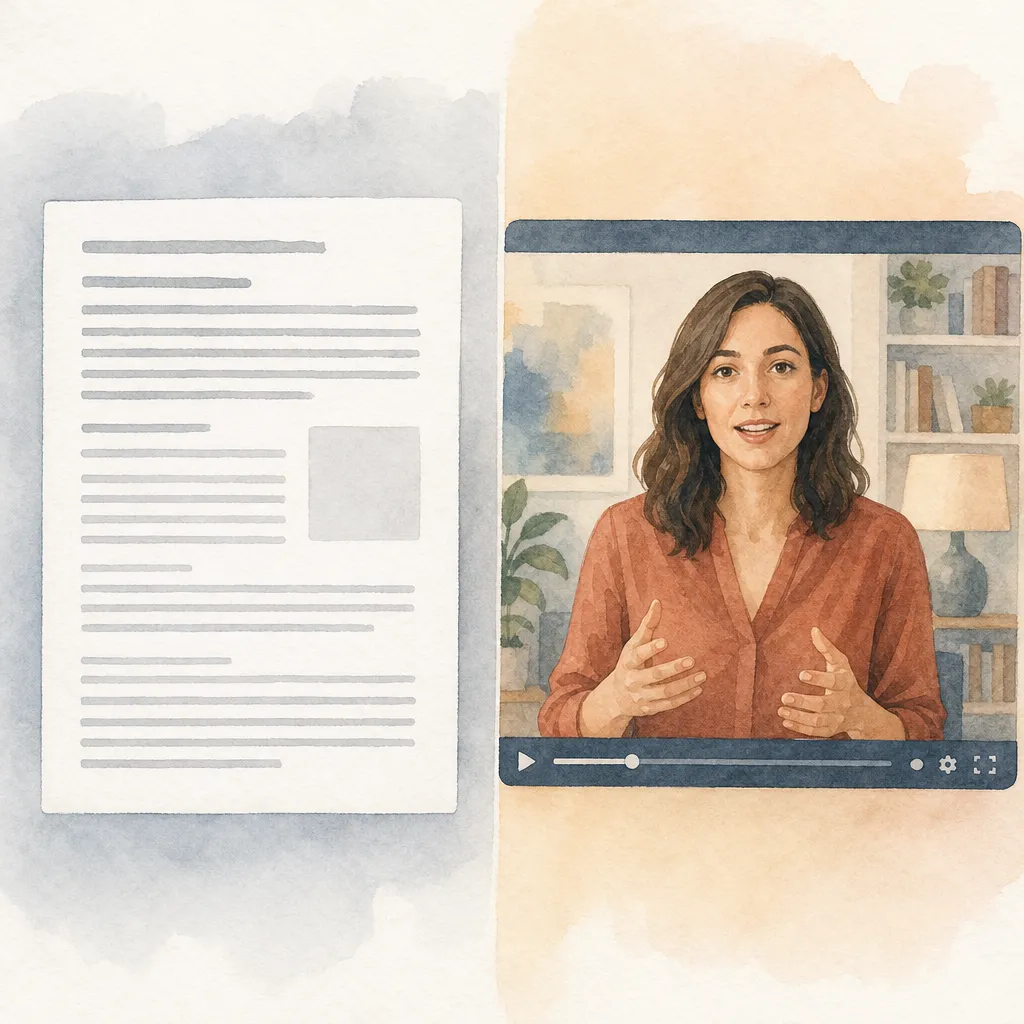
People finish videos they would never read as a PDF. A presenter adds a few things text cannot:
- Pace. A narrator controls how fast information arrives, so learners do not skim past the part that matters.
- Attention. A face looking at the camera holds focus better than bullet points on a slide.
- Consistency. Every new hire hears the same explanation, in the same order, with the same emphasis. No one gets the Monday-morning version and the Friday-afternoon version.
That last point is the quiet win for training teams. When your safety briefing or your refund policy is delivered by the same presenter every time, you remove the variation that creeps in when twelve different managers explain it in their own words.
Where presenter videos fit in a training library
Not every lesson needs a face. A good mix usually looks like this:
- Presenter videos for welcome messages, policy explanations, and anything where a human delivery builds trust or warmth.
- Explainer videos for process walkthroughs, where on-screen stills and narration do more work than a talking head.
- Short vertical clips for quick reminders you might share in a team chat.
Think of the presenter as your anchor: the person who opens a module and ties it together, with other formats filling in the detail.
From training script to finished video: a step-by-step
Here is the workflow from a blank page to a file you can share.
- Write or paste your script. The presenter delivers what you give it. Artistik does not invent your policy or your safe-handling steps, so write them out plainly. Short sentences read better out loud than long ones.
- Open the Presenter format. Presenter videos are per-second talking video, so they use purchased credit — add a one-time credit pack (from $5) first.
- Pick a persona. Choose from Gen Z, expert, mom, hype, or calm. For most training, expert or calm fits: steady, clear, not shouting.
- Set the language. Deliver the same module in different languages for teams in different regions.
- Generate a preview. You will see a watermarked version first so you can check the pacing, the captions, and whether the delivery feels right.
- Review the script read-back. Listen for any word the presenter stumbles over or any sentence that runs too long for a breath. Trim it in the script and regenerate.
- Keep the piece. Remove the watermark and download the finished MP4 plus the script.
A tip from making a lot of these: read your script out loud before you paste it. If you run out of breath in a sentence, so will the delivery. Fixing it on paper is faster than fixing it in video.
An example prompt you can paste
Here is the kind of brief that produces a usable first draft. Swap in your own details.
Persona: calm expert. Topic: new-hire data privacy basics for a retail company. Script to deliver: “Welcome to your first privacy module. Today we cover three things: what counts as customer data, where you can and cannot store it, and what to do if you think data has been exposed. Customer data includes names, email addresses, payment details, and purchase history. Store it only in the approved systems your manager showed you on day one. Never copy it to a personal device or a personal email. If you believe data has been exposed, do not try to fix it yourself. Report it to your team lead within the hour. That one habit protects our customers and protects you. Thanks for watching, and welcome to the team.” Language: English. Tone: reassuring, not stern.
Notice that the script is complete. The generator does not fill in your rules; it performs the ones you supply. That is exactly what you want for training, where a made-up detail would be a real problem.
What it costs
Presenter videos always run on purchased credit, because the talking, lip-synced video is more expensive to produce than still images. The good news: a one-time credit pack is enough. You do not need a subscription to make presenter videos, though a monthly plan removes watermarks and includes a set dollar amount of making each month.
Here is how the presenter compares with related formats for a training library, using measured per-piece costs:
| Format | Typical cost per piece | Best for |
|---|---|---|
| Presenter | about $1.20–$3 | A face delivering a policy or welcome message |
| Explainer | about $0.25–$0.70 | Narrated process walkthroughs, faceless |
| Podcast | about $0.50–$2.50 | Audio modules with one to three hosts |
| Carousel | about $0.01–$0.10 | Quick reference slides and checklists |
How paying works: presenter videos are paid from purchased credit (packs from $5, bigger packs add a bonus), and you can keep any single piece for a one-off $4.99 or pick a monthly plan from $9 that removes watermarks and includes that dollar amount of making every month. The free starter credit covers a first piece in the other formats, such as an explainer. See full pricing for the details.
A practical note for budgeting a whole course: presenter clips add up faster than explainers because of the per-second talking video. Many teams use a presenter for the opening and closing of each module and lean on explainers for the middle, which keeps the total reasonable without losing the human touch where it matters most.
When a real face is still better

An AI presenter is a generated person. That is the right tool for a lot of training, and the wrong tool for some. Be honest with yourself about which you are making.
Use a real human on camera when:
- The message is personal. A founder’s welcome, a thank-you after a hard quarter, or a leader addressing a sensitive change should come from the actual person. A generated face reading “a message from your CEO” is not your CEO, and people can tell.
- Trust is the whole point. Safety-critical demonstrations, medical or legal content, or anything where a viewer needs to believe a specific qualified human stands behind the words.
- You need a real demonstration. If the training is “here is how to operate this machine” or “here is the exact hand motion,” you need footage of the real thing, not a presenter describing it.
- Your culture values face time. Some teams simply want to see each other. If part of onboarding is helping a new hire recognize their manager, that has to be the real manager.
An AI presenter works well when:
- The content is factual and repeatable: policies, definitions, refresher courses.
- You need the same module in several languages.
- You update the content often and cannot reshoot each time.
- You want to produce a lot of short modules on a modest budget.
Because the presenter is generated, be clear with your learners where it helps. Many teams add a short line in the module description noting the video uses a generated presenter. It is a small honesty that avoids an awkward surprise and keeps trust intact.
Keeping a training series consistent
Training is rarely one video. It is a module here, a refresher there, a new topic next quarter. A few habits keep the set feeling like one course rather than a pile of unrelated clips.
- Lock your persona. Pick one presenter persona and use it across the series so learners get a familiar host.
- Keep an intro and outro template. Reuse the same opening and closing lines, swapping only the topic, so every module feels like part of the same program.
- Write a style sheet. Decide how you refer to teams, tools, and policies, and keep that language identical across scripts. The presenter reads exactly what you write, so consistency lives in your source documents.
If part of your program is better as audio — think weekly knowledge-sharing or a rolling series of short internal updates — a self-running show can carry that load. Autopilot brainstorms, writes, fact-checks, voices, and publishes podcast episodes on a schedule, with its own RSS feed, and you review each one or let it run. It pairs nicely with presenter videos: the videos anchor the formal curriculum, the podcast keeps a steady drip of lighter learning going.
A quick planning trick before you write
Before you generate anything, figure out how long each module should actually be. A ten-minute talking head is a slog; most training clips land better at two to four minutes. The free tools include a video script length calculator that converts your word count into seconds, so you can trim a script to the length you want before you spend anything on video. Write to that target, then generate. It saves you from making a four-minute clip you planned to be ninety seconds.
Frequently asked questions
Is the presenter a real person or a hired actor? It is a generated person, not a real actor and not your own staff. That is why it works for repeatable, factual training, and why you should use a real human for personal messages or anything where a specific qualified person needs to stand behind the words.
Can I make the same training module in other languages? Yes. The presenter format supports delivery in multiple languages, so you can produce the same module for teams in different regions. Write the script, set the language, and generate each version.
Do I need a subscription to make a presenter video? No. Presenter videos run on purchased credit, and a one-time credit pack is enough — no subscription required. A monthly plan from $9 removes watermarks and includes a set amount of making each month if you plan to produce a lot.
Will it write the training content for me? It performs the script you provide and will not invent your policies or procedures. For anything factual, write out the exact points you want covered. For process walkthroughs where you do not need a face, an explainer video may fit better.
Who owns the finished training video? You do. What you unlock is royalty-free with commercial use allowed, no attribution, and no revenue share, so you can use it across your internal training however you need.
Try it with your next module
Pick one short policy you explain the same way every month — the kind of thing you are tired of repeating — and turn it into a clean, lip-synced video this afternoon. Your first piece is on us, so you can see the delivery before you commit to anything. Start with the Presenter format, write the words you already know by heart, and let the camera day go.